Translations — Translate Your PDF Documents into 13 Languages with ProPDF
Extracting text from a PDF is only half the job. What if that document is in a language you don't read? Maybe it's a contract in German, a research paper in Japanese, or a product manual in Korean. Manually copying extracted text into a separate translation tool adds friction and loses formatting. ProPDF solves this with its built-in Translate feature — an advanced option that translates your extracted content directly within the processing pipeline.
No extra software. No copy-pasting into Google Translate. Just select a target language and ProPDF handles the rest.
What Is the Translate Feature?
Translate is an advanced option available on every ProPDF upload. When enabled, it takes the extracted text from your document and translates it from its source language into a target language of your choosing — all as part of the same processing pipeline. The output arrives in your chosen format (Markdown, plain text, JSON, HTML, DOCX, or CSV) already translated and ready to use.
The feature lives behind the Advanced Options panel on the upload page. Open the panel, pick a source and target language, and ProPDF handles the translation after OCR and structure extraction are complete.
- Auto-detect source language — Don't know what language the document is in? Leave source on "Auto" and ProPDF figures it out.
- 13 target languages (so far!) — Translate into English, Spanish, French, German, Italian, Portuguese, Dutch, Russian, Japanese, Korean, Chinese (Simplified), Arabic, or Hindi.
- Structure preserved — Headings, lists, tables, and formatting survive the translation. You get a translated document, not a flat wall of text.
- Included free — Translation is part of every upload at no additional cost. No premium tier, no add-on.
- AI-powered — Uses a dedicated translation model (TranslateGemma) designed specifically for high-quality document translation.
How It Works
When you enable translation, ProPDF's pipeline runs through an additional step after text extraction and layout analysis. Here's what happens:
- OCR and extraction — ProPDF processes your document exactly as it normally would. Text is extracted, layout is analyzed, and the Markdown output is generated.
- Language detection — If the source language is set to "Auto," ProPDF detects the document's language automatically.
- Chunk-based translation — The extracted Markdown is split into manageable chunks and each chunk is sent to the AI translation model. This chunk-based approach ensures that large documents translate completely without hitting token limits.
- Structure reassembly — Translated chunks are reassembled into a single Markdown document, preserving headings, lists, tables, code blocks, and page breaks.
- Database update — Both the markdown content and layout block content are updated in the database with the translated text, so every output format reflects the translation.
The result: your document arrives in the target language with all structure intact. Download it as Markdown, DOCX, HTML — whatever format you selected, the content is already translated.
Supported Languages
ProPDF supports 13 target languages for translation. The source language can be any of these, or set to "Auto" for automatic detection:
| Language | Code |
|---|---|
| English | en |
| Spanish | es |
| French | fr |
| German | de |
| Italian | it |
| Portuguese | pt |
| Dutch | nl |
| Russian | ru |
| Japanese | ja |
| Korean | ko |
| Chinese (Simplified) | zh |
| Arabic | ar |
| Hindi | hi |
That's 13 languages covering the most widely spoken and business-critical languages worldwide. Whether you're translating a legal contract from English to Spanish, a research paper from Japanese to English, or a product manual from Chinese to German — ProPDF has you covered.
The underlying AI model powering the translation supports the 55 most common languages, but have strongest results with the top 13. As more testing is done we will deploy more language options.
How to Enable Translation
Step 1: Upload Your Document
Upload your PDF or image file as you normally would — drag and drop, or click to browse.
Step 2: Open Advanced Options
Click the Advanced Options button on the upload panel. This reveals the detail level selector and the translation language dropdowns.
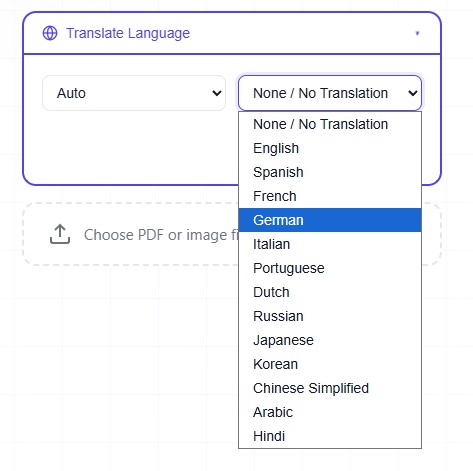
Source and Destionation language selection options.
Step 3: Select Source and Target Languages
Under Translate Language, you'll see two dropdowns:
- Source (left): Choose the document's original language, or leave it on "Auto" for automatic detection.
- Target (right): Choose the language you want the output translated into. Set to "None / No Translation" to skip translation.
Step 4: Process Your Document
Click Extract. ProPDF runs through OCR, layout analysis, and translation in sequence. You'll see a "Translating to [language]…" progress indicator during the translation phase.
Processing time with translation enabled adds approximately 5–10 seconds per page to the standard extraction time. A 10-page document that normally takes 30 seconds might take 60–90 seconds with translation enabled.
Step 5: Download Your Translated Document
Once processing is complete, your result is available in the translated language. Download in your preferred format — the translation is already applied to all output types.
Auto-Detect Source Language
Not sure what language your document is in? You don't need to be. Set the source language dropdown to Auto and ProPDF detects it automatically.
Auto-detection works well for most documents, especially those written entirely in a single language. For mixed-language documents (e.g., a research paper with an English abstract and Chinese body text), the detector identifies the dominant language. If you need precise control, manually select the source language instead.
Translation Quality and Accuracy
ProPDF's translation is powered by a dedicated TranslateGemma model — an AI model specifically trained for high-quality document translation. Unlike general-purpose translation tools, it's optimized for maintaining document structure, handling technical terminology, and preserving formatting markers like Markdown headings, tables, and code blocks.
What Translates Well
- Body text and paragraphs — Natural, fluent translation of prose content.
- Headings and titles — Section headings are translated while maintaining their heading level in the Markdown structure.
- List items — Bulleted and numbered list content is translated in context.
- Table content — Cell content in tables is translated while preserving the table structure.
- Layout block labels — Text within detected layout regions (headers, footers, sidebars) is translated.
What Stays Untranslated
- Code blocks — Code is preserved as-is. Programming syntax doesn't get translated.
- URLs and links — Link destinations remain untouched.
- Image alt-text filenames — Image references are preserved.
- Numeric-only content — Numbers, dates, and figures that are language-independent are left as-is.
Processing Time
Translation adds processing time on top of the standard OCR and extraction pipeline. The additional time depends on the document length:
The chunk-based approach means even very large documents translate completely. ProPDF splits the extracted text into chunks, translates each one, and reassembles them — so there's no hard limit on document length.
Translation Is Free — Included with Every Upload
Unlike many PDF translation tools that charge per-page or per-word rates for translation, ProPDF includes the Translate feature at no additional cost. It's part of the standard processing pipeline for every upload — single file or bulk batch.
There's no premium tier to unlock, no translation credits to purchase, and no limit on how many documents you can translate. If you have a ProPDF account, translation is simply available as an advanced option on every single upload.
Real-World Use Cases
Legal Document Translation
A law firm receives a contract in German that needs to be reviewed by an English-speaking attorney. Upload the PDF, set source to "Auto" and target to "English," and the output arrives as a translated Markdown document ready for review — structure, clauses, and formatting all preserved.
Academic Research
A researcher needs to read a paper published in Japanese. Upload the PDF, select Japanese to English translation, and get a translated document that maintains the paper's headings, sections, and any tables — far more useful than a flat text translation.
Business Communications
A company receives vendor invoices and product specifications in Chinese. Bulk upload the files, set translation to English, and every document in the batch arrives translated and ready for review — all in a single processing run with one payment.
Multilingual Content Publishing
A content team publishes documentation in multiple languages. Write the source document once, upload it to ProPDF with translations enabled for each target language, and get structured Markdown output for each language version — ready to publish to their CMS.
Frequently Asked Questions
Is translation really free?
Yes. Translation is included with every ProPDF upload at no additional cost. There's no premium tier or add-on fee.
How accurate is the translation?
ProPDF uses a dedicated AI translation model (TranslateGemma) designed for document-quality translation. For general prose, headings, and structured content, accuracy is high. Like any machine translation, highly idiomatic text, poetry, or specialized medical/legal terminology may not be perfect — but for the vast majority of business and academic documents, the output is directly usable.
Can I translate to multiple languages at once?
Not in a single upload. Each upload supports one target language. If you need a document translated into multiple languages, re-process the same upload with a different target language each time — no need to re-upload the file.
Does translation work on scanned documents?
Yes. ProPDF runs OCR first to extract the text from scanned pages, then applies translation to the extracted content. The translation step works regardless of whether the source was a text-based or scanned PDF.
What happens if translation fails on part of the document?
If a specific chunk fails to translate (e.g., due to a network issue), ProPDF falls back to the original untranslated text for that chunk and continues processing the rest. You'll get a partially translated document rather than a failed job. The failed chunks are logged for review.
Does translation work with Bulk Upload?
Yes. You can enable translation for bulk uploads. The same source and target language settings apply to all files in the batch. Each file is translated independently during processing.
What format should I choose for translated output?
Markdown is the recommended format for translated documents. It preserves the most structure, making the translated content easier to read and edit. DOCX is also a good choice if you need to edit the translated document in Word or Google Docs.
Translate Your PDFs — Free and Built In
Stop copy-pasting extracted text into separate translation tools. ProPDF's built-in Translate feature handles 13 languages, preserves your document's structure, and costs nothing extra. Just upload, pick a language, and get your translated document in seconds.