How to Extract Text from PDF — A Step-by-Step Guide
Whether you're digitizing old documents, pulling data from contracts, or converting research papers into editable text, extracting content from PDFs shouldn't be a chore. ProPDF makes it effortless — AI-powered OCR that handles scanned documents, complex layouts, and multi-page files with remarkable accuracy.
In this guide, we'll walk through the entire process from upload to download. No account needed to start. Let's dive in.
What You'll Need
- A PDF file (scanned or text-based — ProPDF handles both)
- A modern web browser (Chrome, Firefox, Safari, or Edge)
- An internet connection
That's it. No software to install, no plugins, no signup required for basic use.
Step 1: Open ProPDF
Head to propdf.ai — you'll land on the homepage with a clean, intuitive interface.
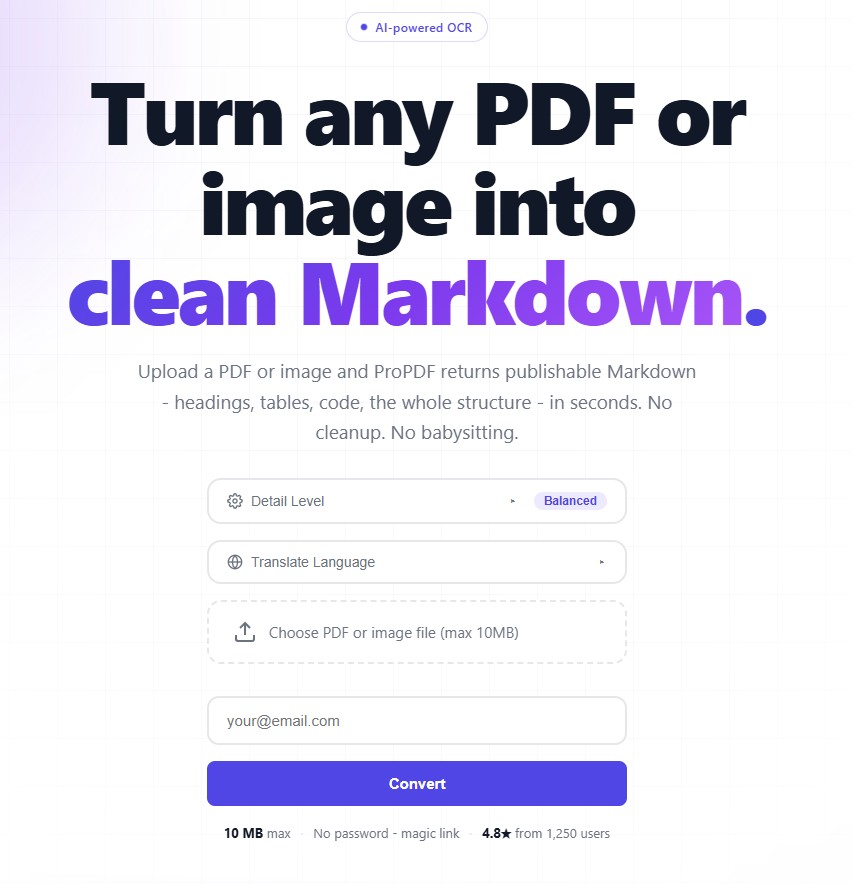
The homepage, where it all starts.
Step 2 (Optional): Select your Detail Level or Translation Language
ProPDF lets you control how deeply it analyzes your document's layout:
| Level | Best For |
|---|---|
| Low | Simple and fastest, text-heavy documents with minimal formatting |
| Balanced | Standard documents with headings, lists, and some layout complexity |
| Detailed | Complex layouts — multi-column pages, tables, forms, mixed content |
Not sure? Start with Balanced. It works well for most documents.
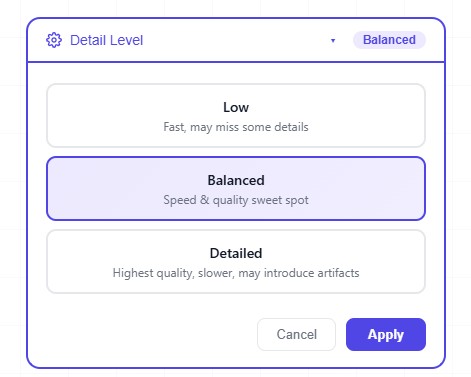
(optional) Detail Level options.
Sometimes the document or image you need to process is not the target language you need. You can change your final language output to be one of 13 (more coming soon!) languages. You can set the source language to help with the AI translator to speed things up, but you can always set it to Auto to detect the language for you. Please note that the AI translator understands 55 languages but currently can only translate to 13 destination langauges.
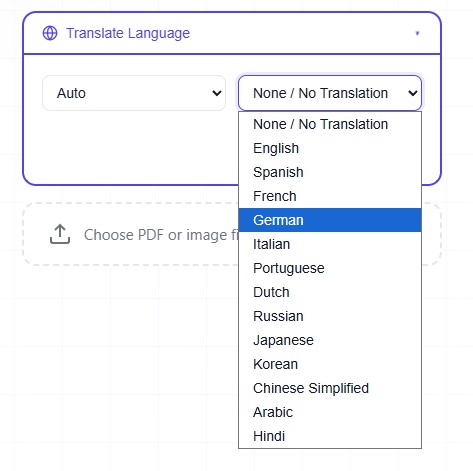
(optional)Translate Language options.
Step 3: Upload Your PDF
Click the upload area or drag and drop your PDF file directly onto the page. ProPDF supports:
| Input Format | Supported? | Notes |
|---|---|---|
| PDF (text-based) | ✅ Yes | Standard searchable PDFs |
| PDF (scanned/image) | ✅ Yes | AI OCR processes scanned pages |
| PDF (mixed) | ✅ Yes | Documents with both text and scanned pages |
| Images (PNG, JPG, TIFF) | ✅ Yes | Direct image upload for OCR |
Large files? No problem. ProPDF handles multi-page documents and sizable files without breaking a sweat.
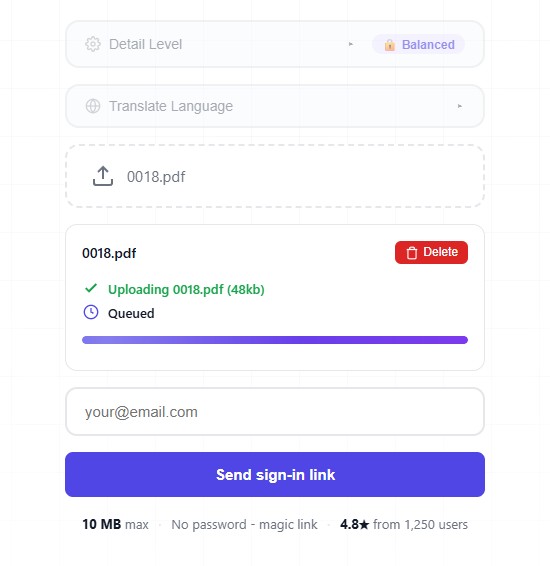
Upload screen.
ProPDF's AI engine gets to work immediately — analyzing page layout, detecting text regions, handling columns and tables, and converting everything into your chosen format.
Processing time depends on file size and complexity, but most documents finish in seconds. A progress indicator keeps you informed.
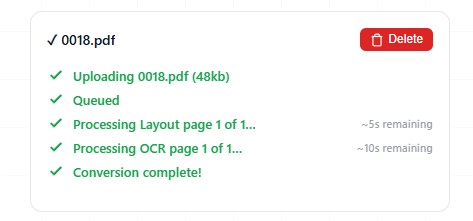
Your upload is processing.
Step 4: Sign in using a magic link
You will need to sign into the application to view your results. We take your privacy seriously so no passwords are needed. Just put in your email and you will get a link that will automatically authenticate you to the application. From there you will see your upload and the results.
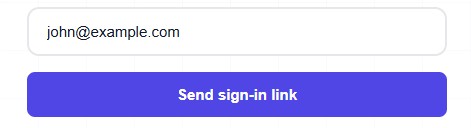
Enter your email and you will get a magic link that automtically signs you in.
Step 5: Review Your Extracted Text
Once processing is complete, your extracted content appears on screen. Take a moment to review it:
- Structure check — Are headings, paragraphs, and lists preserved correctly?
- Table check — If your document had tables, verify the rows and columns aligned properly.
- Accuracy check — For scanned documents, review a few paragraphs to confirm OCR accuracy.
ProPDF's AI handles most documents with impressive precision, but it's always good practice to scan the output — especially with heavily formatted or handwritten documents.
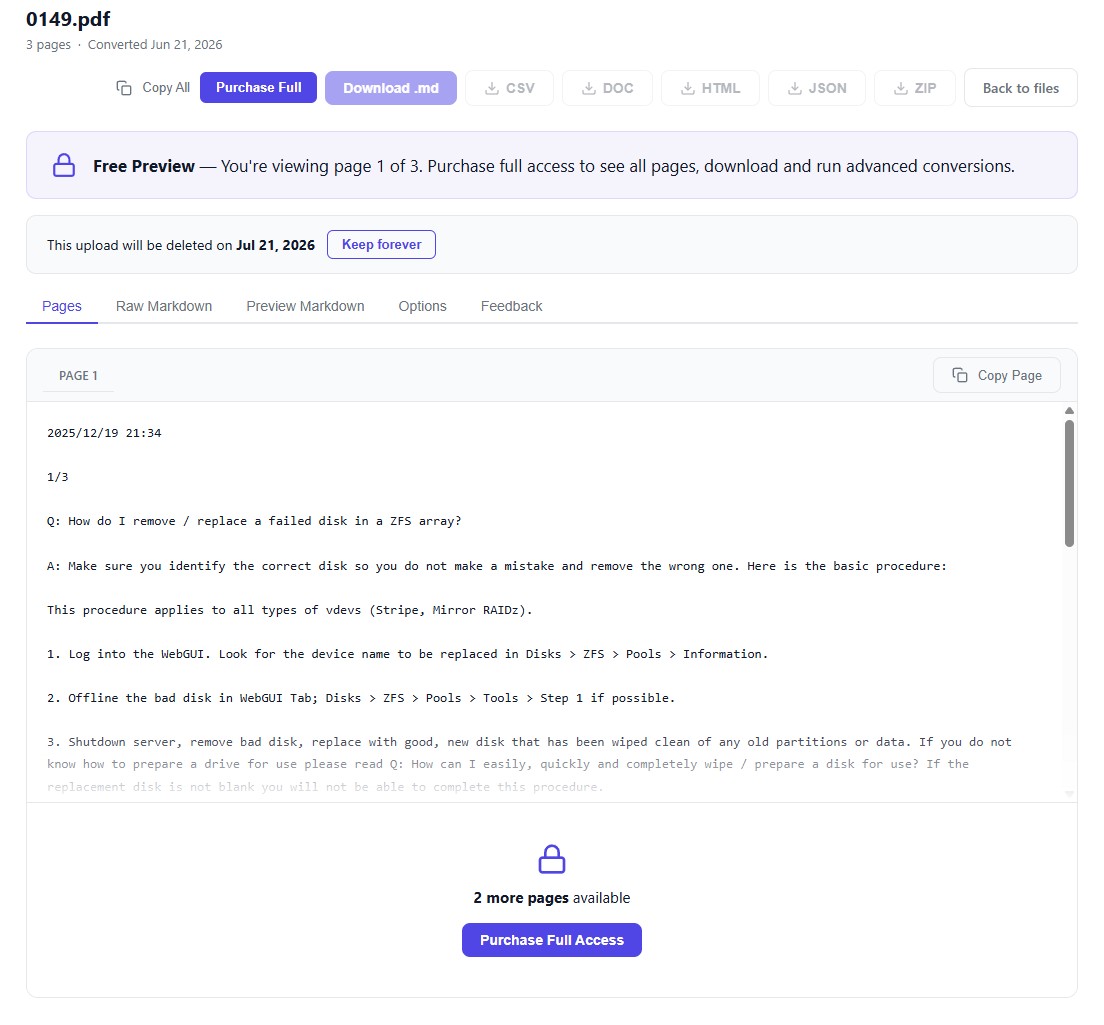
Free preview for the first page.
Step 6: Purchase to unlock all pages and download formats
Satisfied with the results? Prices are based on how many pages are processed, the more pages the cheaper per page.
Step 7: Download Your Content
Download your file in the format you selected. One click and it's on your machine — ready to edit, share, or integrate into your workflow.
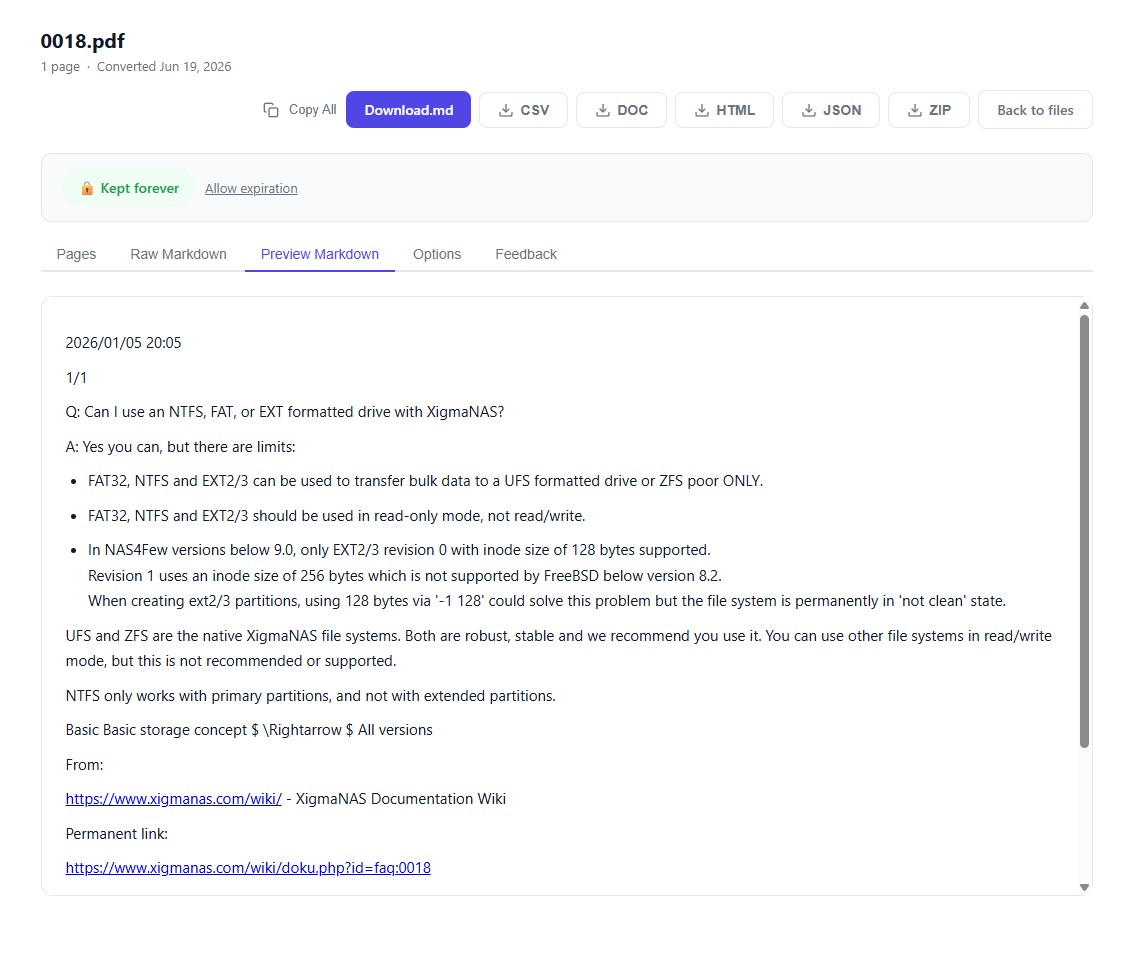
Download any of the output formats.
Tips for Best Results
- Clean scans work best — If you're scanning physical documents, use at least 300 DPI for optimal OCR accuracy.
- Use Detailed setting for complex layouts — Multi-column newsletters, invoices, and forms benefit from the deeper layout analysis.
- Markdown output preserves the most structure — It's the best format if you want to maintain the document's hierarchy and formatting.
- Re-process if needed — Not happy with the first result? Try a different detail level and preview the results.
Frequently Asked Questions
Is ProPDF free to use?
Yes, ProPDF offers extraction with a free first page preview. Paid features unlock all pages and allow for all file format downloads.
Does ProPDF work with scanned PDFs?
Absolutely. ProPDF uses AI-powered OCR that's designed specifically for scanned and image-based documents. It handles handwriting, low-quality scans, and complex layouts far better than traditional OCR tools.
What about sensitive documents?
ProPDF processes your documents securely. Files are automatically deleted after 30 days, but you can always delete anytime or keep your files indefinitely.
Can I extract text from images (not PDFs)?
Yes! ProPDF accepts common image formats (PNG, JPG, TIFF) directly — no need to convert to PDF first.
Ready to Extract Text from Your PDFs?
Stop retyping. Stop copy-pasting. Let AI do the heavy lifting.