How Advanced Options (Detail Level) Change OCR Regions — A Visual Guide
When you upload a PDF to ProPDF, the document doesn't get processed as one giant image. Instead, it's divided into smaller rectangular areas called regions. Each region is a slice of the page that gets fed into the OCR engine separately. How those regions are drawn — how many there are and where the boundaries fall — depends on a single setting: Detail Level.
This guide explains what's happening under the hood, how the detail level controls region detection, and how to pick the right level for your document.
What Are OCR Regions?
Before a page can be read, it needs to be cut up. Think of it like slicing a pizza — the whole page is the pizza, and each region is a slice. The OCR engine processes each slice one at a time, reading the text within that rectangular area.
Why cut the page up at all? Because OCR accuracy drops on complex layouts. A single column of text is easy to read. A page with three columns, a sidebar, a header, and a footer is hard to read in one pass. By splitting the page into regions that each contain a single logical section, the OCR engine can focus on one thing at a time — and accuracy goes way up.
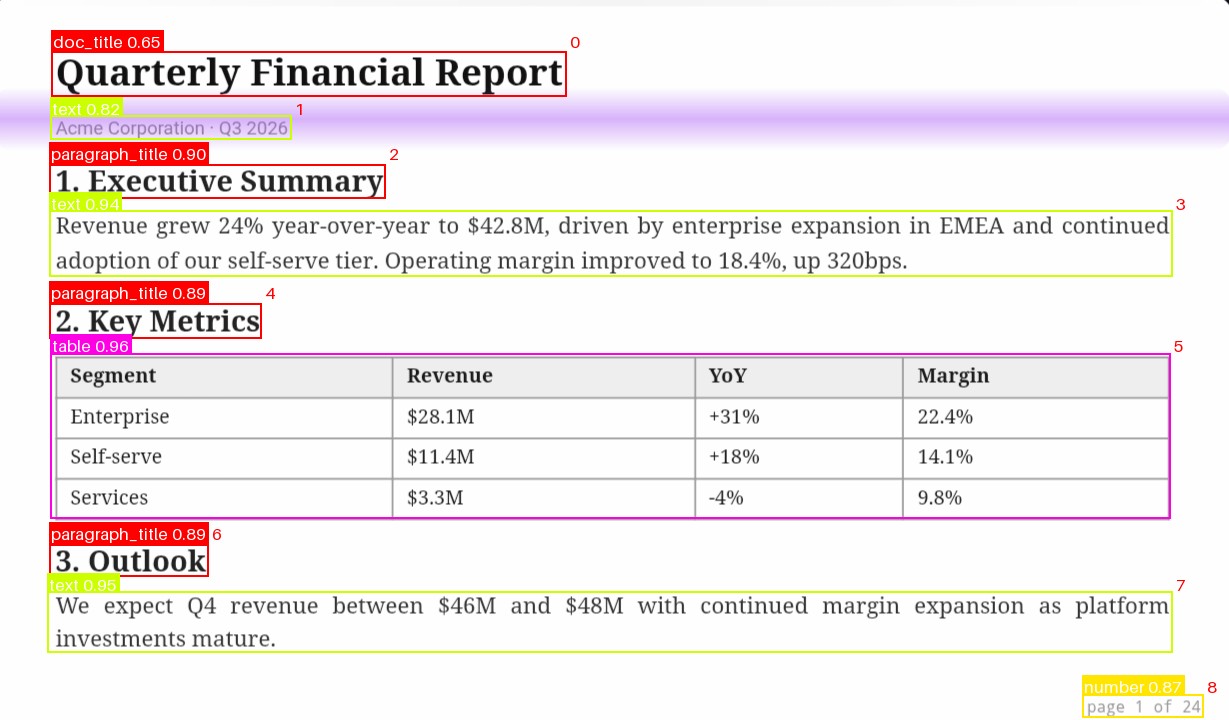
Document Regions highlighted in yellow.
The Engine Parameter Behind It: layout_threshold
Region detection is controlled by a layout sensitivity parameter called layout_threshold. This is the number that changes when you move the detail level slider.
Here's the essential relationship:
| layout_threshold Value | Sensitivity | Effect on Regions |
|---|---|---|
| Low number | Low sensitivity | Fewer, larger regions |
| High number | High sensitivity | More, smaller regions |
When the threshold is low, the layout engine is less picky about detecting boundaries. It groups larger areas of the page together, creating fewer but bigger regions. When the threshold is high, the engine sees boundaries everywhere — columns, sidebars, headers, footers, captions — and creates many small regions to match.
Detail Levels Explained
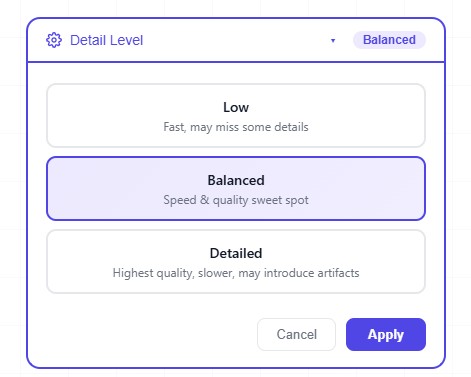
Detail Level options during file upload.
Low Detail — Fast and Broad
Low detail uses a low layout_threshold value. The layout engine groups large portions of the page together into single regions. A multi-column newsletter might end up as just one or two regions per page instead of six or eight.
- Speed: Fastest processing — fewer regions means fewer OCR passes
- Accuracy: Good for simple, text-heavy documents
- Trade-off: Fine details like page numbers, section headings, and small captions may get absorbed into larger regions and missed
Best for: Simple text documents, novels, single-column reports, and any document where you just need the main body of text without caring about headers, footers, or marginal details.
Medium Detail — The Balanced Default
Medium detail strikes a balance. The layout engine detects major structural boundaries — columns, tables, prominent headings — but doesn't split on every minor layout feature. A typical page might produce 4–8 regions.
- Speed: Moderate — more regions than Low, but still efficient
- Accuracy: Handles most standard documents well
- Trade-off: May miss very small elements like footnotes or subtle sidebars on complex layouts
Best for: Most common documents — business reports, articles, financial statements, legal contracts, and anything with standard formatting. This is why ProPDF defaults to Medium.
High Detail — Thorough and Precise
High detail uses a high layout_threshold. The engine is highly sensitive to layout boundaries and creates many small, precisely bounded regions. Almost every visual element on the page gets its own region — headers, footers, captions, sidebar callouts, page numbers, and even decorative dividers.
- Speed: Slowest — many regions means many OCR passes and more total processing time
- Accuracy: Highest structural fidelity — captures nearly everything visible on the page
- Trade-off: Can include irrelevant elements like page lines, smudges on scanned images, decorative borders, and other visual artifacts that aren't actual text content
Best for: Complex multi-column layouts, forms with many fields, newsletters, magazine-style pages, and any document where preserving every element matters. Also useful when lower detail levels miss content you need.
Placeholder: Screenshot of High detail processing — many small regions tightly following every layout element
Visual Comparison: Same Page, Three Detail Levels
The best way to understand the difference is to see the same page processed at all three levels. Here's what happens to a typical two-column article with a header and page number:
| Detail Level | Regions Detected | What's Captured | What's Missed |
|---|---|---|---|
| Low | 1–2 regions | Main body text across both columns | Page number, header, column boundaries |
| Medium | 4–6 regions | Each column separately, header | Small footnotes, subtle sidebars |
| High | 8–12+ regions | Each column, header, footer, page number, captions, dividers | Nothing significant — but may include artifacts |
Speed vs. Accuracy: The Real Trade-Off
More regions means more OCR work. Here's how processing time typically scales:
| Detail Level | Relative Processing Time | Best Use Case |
|---|---|---|
| Low | ~1x (fastest) | Quick text extraction where structure doesn't matter |
| Medium | ~1.5–2x | Standard documents where structure should be preserved |
| High | ~3–5x (slowest) | Complex layouts requiring full structural fidelity |
These are approximate ranges — actual times depend on page complexity, file size, and current server load. The key takeaway: High detail can be significantly slower, so reserve it for documents that truly need it.
When Detail Level Goes Wrong
Choosing the wrong detail level doesn't break anything — but it can lead to suboptimal results. Here are the common scenarios:
Too Low Detail on a Complex Document
You process a three-column newsletter with Low detail. The OCR engine treats each page as one big region. Result: text from different columns gets mixed together, reading order becomes unpredictable, and you lose the distinction between the main article and the sidebar. The output reads like someone scrambled three articles into one.
Fix: Bump up to Medium or High detail and re-process.
Too High Detail on a Simple Document
You process a single-column essay with High detail. The OCR engine detects page numbers, running headers, and even faint scan lines as separate regions. Result: your output includes page numbers and header text interspersed with the content, and you might get OCR artifacts from scan lines or smudges that wouldn't appear at Medium detail.
Fix: Drop down to Medium or Low detail and re-process.
Practical Recommendations
- Start with Medium. It's the right choice for 80% of documents. Only deviate when the output doesn't match your expectations.
- Go to High if Medium misses content. Headers, footers, sidebars, or multi-column sections that get merged at Medium will separate properly at High.
- Go to Low for speed. If you're batch-processing dozens of simple documents and just need the raw text, Low is fast and effective.
- Re-processing is free. Not happy with the result? Change the detail level and re-process. ProPDF keeps your uploaded document available so you don't need to re-upload.
Frequently Asked Questions
Does detail level affect OCR accuracy on the text itself?
Within each region, OCR accuracy is the same regardless of detail level. The difference is in how the page is divided. Complex layouts processed at Low detail can produce apparently less accurate output because text from different sections gets mixed — but the actual character recognition within each region is equally good.
Why does High detail sometimes include junk in the output?
High sensitivity detects many layout boundaries — including ones caused by scan artifacts, page lines, smudges, or decorative elements. These get processed as separate regions, and the OCR engine may attempt to read them, producing fragments of noise in the output. This is the expected trade-off for maximum sensitivity.
Does detail level apply to text-based PDFs or only scanned ones?
Both. Detail level controls how the page is divided into regions for processing, which matters for both scanned OCR and text extraction. Complex text-based PDFs with multi-column layouts benefit from higher detail just as scanned documents do.
What if I'm not sure which level to pick?
Start with Medium. Review the output. If structure is missing or columns are merged, go Higher. If you see unwanted page numbers or artifacts, go Lower. Most users settle on Medium and never need to change it.
Try It Yourself — See the Difference
The best way to understand detail levels is to experiment. Upload a multi-column PDF, process it at Low, Medium, and High detail, and compare the results. You'll see exactly how the region boundaries shift and how that affects what makes it into your output.