Conversion Formats: Input to Output Structures — Choosing the Right Format for Every PDF
Converting a PDF isn't just about getting the text out — it's about getting it out in the right format. A legal contract needs to stay formatted. A data table needs structure. A blog post needs clean markup. One file, many possible outputs, and choosing correctly saves you time downstream.
ProPDF supports a range of input formats and converts them into six distinct output formats. This guide covers what goes in, what comes out, and when to choose each option.
Input Formats: What ProPDF Accepts
Before choosing an output format, it helps to understand what ProPDF can process. Not all PDFs are created equal — and ProPDF handles them all.
Text-Based PDFs
The most common type. These are PDFs generated from software like Word, Google Docs, or page layout tools. The text lives inside the file as encoded characters — not as images of text. ProPDF extracts the text directly, preserving structure and formatting.
- Reports, memos, and business documents
- Contracts and legal agreements
- E-books and whitepapers
- Exported web pages and presentations
Scanned PDFs (Image-Based)
These PDFs are essentially photographs of pages. They contain no searchable text — just images. ProPDF's AI-powered OCR engine processes scanned pages, recognizing characters, layout regions, and document structure with high accuracy.
- Scanned contracts and signed documents
- Digitized books and archives
- Older documents without text layers
- Fax-to-PDF conversions
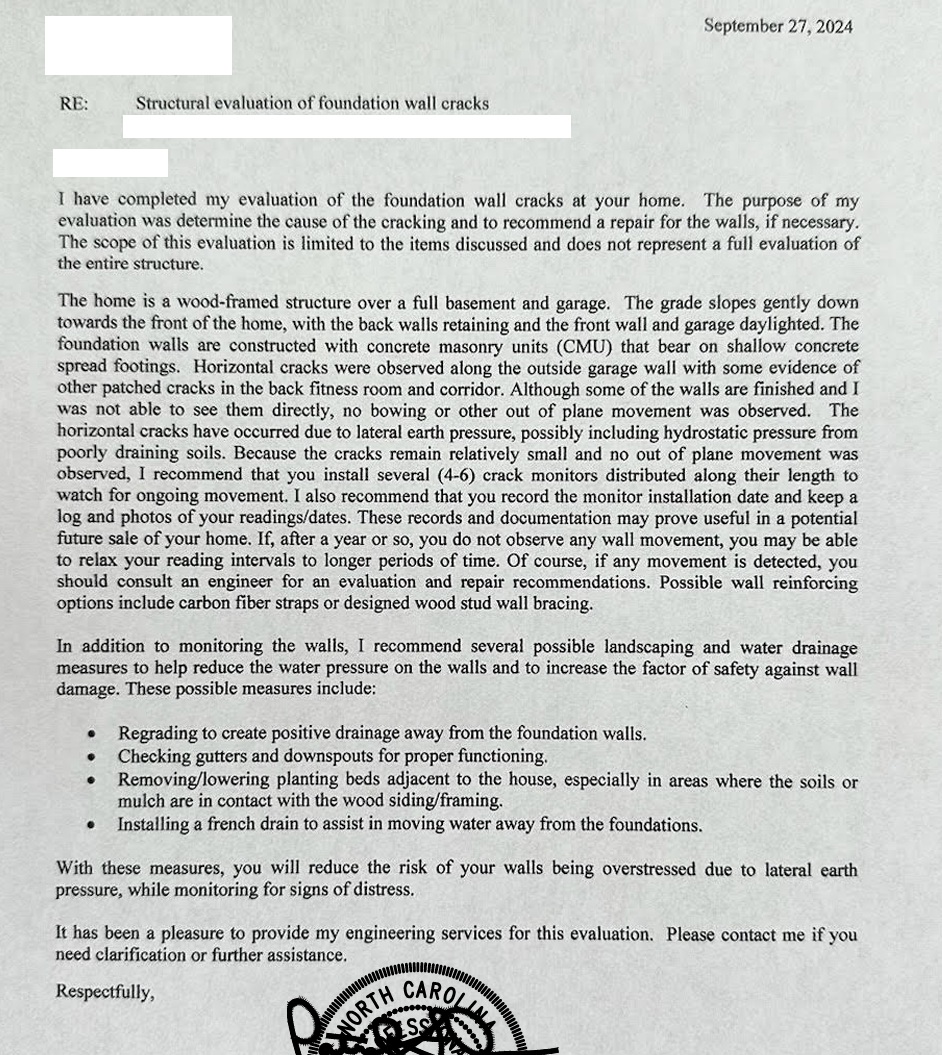
Screenshot of a document, inside a PDF.
After OCR processing:
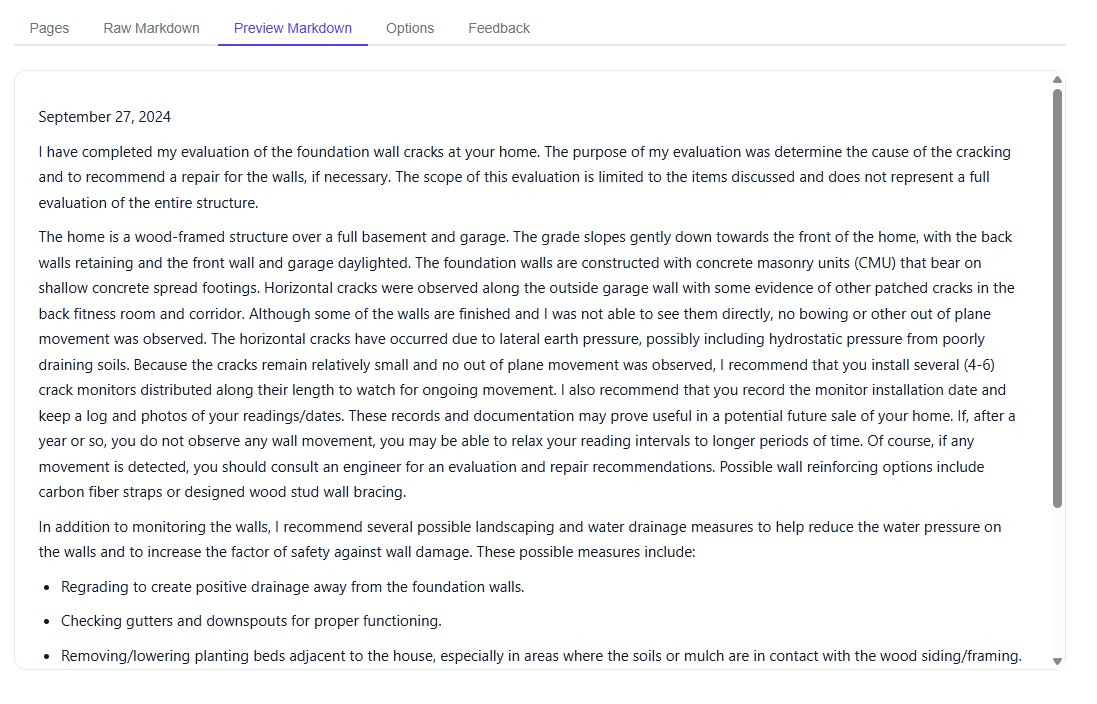
Document content with formatting and structure.
Mixed PDFs
Some documents contain both searchable text and scanned image pages — common in large reports where certain pages were scanned and others were generated digitally. ProPDF detects and handles each page type automatically, applying OCR only where needed.
Direct Image Uploads
You don't need a PDF at all. ProPDF accepts common image formats directly:
| Image Format | Extension | Notes |
|---|---|---|
| PNG | .png | Best for screenshots and digital images |
| JPEG / JPG | .jpg, .jpeg | Most common photo format; works well for receipts and photos of documents |
| TIFF | .tiff, .tif | Preferred in legal and archival workflows; supports multi-page |
Upload an image and ProPDF runs OCR just as it would on a scanned PDF — same AI engine, same quality output.
Output Formats: What ProPDF Produces
Here's where it gets interesting. The same document can yield very different results depending on the output format you choose. Each one serves a distinct purpose.
1. Markdown (.md)
The recommended default. Markdown preserves document structure — headings, lists, tables, emphasis — while remaining clean, editable, and universally compatible. It's the best all-around choice for most use cases.
| Attribute | Detail |
|---|---|
| Preserves structure | ✅ Yes — headings, lists, tables, links |
| Editable in any text editor | ✅ Yes — plain text format |
| Version control friendly | ✅ Yes — meaningful diffs and merges |
| AI-compatible | ✅ Yes — LLMs natively produce and consume Markdown |
| Precision formatting | ⚠️ Limited — no font or layout control |
When to use Markdown:
- Converting documentation, READMEs, or knowledge base articles
- Feeding extracted content into AI pipelines or LLM prompts
- Version-controlled content in Git repositories
- Blog posts, technical writing, or any content destined for web publishing
- Note-taking platforms like Obsidian, Notion, or Logseq
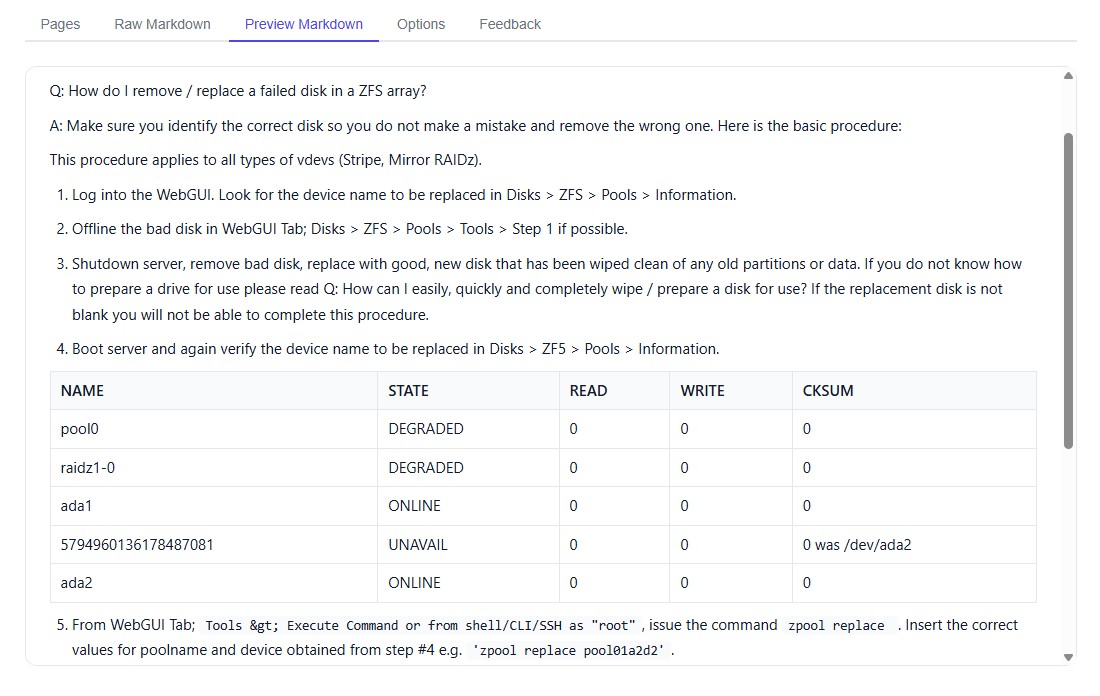
Markdown from document.
2. Plain Text (.txt)
Raw content, no formatting. Plain text strips away all structure and delivers the words and nothing else. It's the simplest output but surprisingly useful in the right scenarios.
| Attribute | Detail |
|---|---|
| Preserves structure | ❌ No — all formatting removed |
| Smallest file size | ✅ Yes — minimal footprint |
| Universal compatibility | ✅ Yes — opens anywhere, on any system |
| Search and index friendly | ✅ Yes — grep, search engines, indexing tools |
| Data mining | ✅ Yes — easy to parse and process programmatically |
When to use plain text:
- Data mining and text analytics — load straight into Python, R, or Elasticsearch
- Full-text search indexing for search engines
- Quick copy-paste when you just need the words
- Content feeding into tokenizers or NLP pipelines that don't need structure
- Archival storage where format simplicity matters more than structure
3. JSON (.json)
Structured data for developers. JSON output delivers your document's content in a structured, machine-readable format. ProPDF organizes extracted content into logical objects — pages, sections, elements — with metadata about each component.
| Attribute | Detail |
|---|---|
| Preserves structure | ✅ Yes — hierarchical document model |
| Machine-readable | ✅ Yes — parseable by any programming language |
| Metadata included | ✅ Yes — page numbers, element types, positions |
| API integration | ✅ Yes — ideal for automated workflows |
| Human readability | ⚠️ Moderate — structured but verbose |
When to use JSON:
- Automated document processing pipelines
- API integrations — feed extracted content into your application
- Data extraction workflows where you need structured fields, not flat text
- Building search indexes, databases, or knowledge graphs from PDF content
- Machine learning preprocessing — structured training data from documents
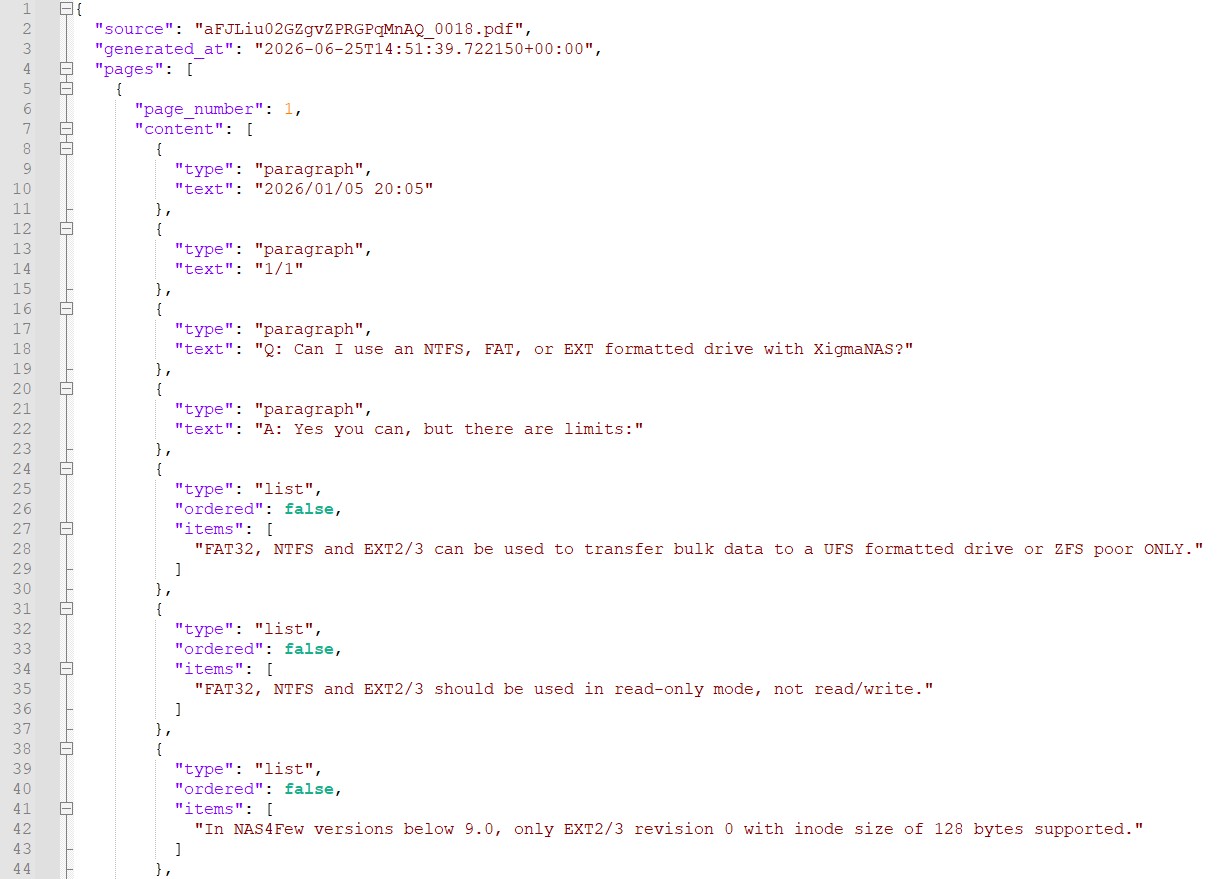
JSON output with document structure. Each section is a Region identified during document parsing.
4. HTML (.html)
Web-ready formatted content. HTML output gives you a styled, semantically structured document ready for display in browsers. ProPDF generates clean HTML with proper heading hierarchy, paragraph tags, and table markup.
| Attribute | Detail |
|---|---|
| Preserves structure | ✅ Yes — full semantic markup |
| Web display ready | ✅ Yes — render in any browser |
| Styling flexibility | ✅ Yes — add your own CSS for custom presentation |
| Web CMS integration | ✅ Yes — paste into WordPress, Ghost, or any CMS |
| Raw size | ⚠️ Larger — markup tags add overhead |
When to use HTML:
- Publishing extracted content directly to a website or blog
- Displaying PDF content in web applications or portals
- Email templates — HTML from a PDF can be adapted for email
- Content management systems that accept HTML input
- Any scenario where the output needs to look like a web page, not a plain document
5. DOCX (.docx)
Microsoft Word and beyond. DOCX output creates a proper Word-compatible document with headings, paragraphs, and tables intact. Open it in Microsoft Word, Google Docs, LibreOffice, or any modern word processor.
| Attribute | Detail |
|---|---|
| Preserves structure | ✅ Yes — heading styles, lists, tables |
| Office compatibility | ✅ Yes — Word, Google Docs, LibreOffice |
| Further editing | ✅ Yes — open and edit like any Word document |
| Collaboration | ✅ Yes — share for review and editing |
| Format control | ✅ Yes — full styling, fonts, layout after opening |
When to use DOCX:
- Converting PDFs for further editing in Word or Google Docs
- Preparing documents for review and collaboration with non-technical teams
- Legal and business documents that need to remain editable
- Reports that require formatting adjustments before distribution
- Any workflow that starts as a PDF but needs to end up as an editable document
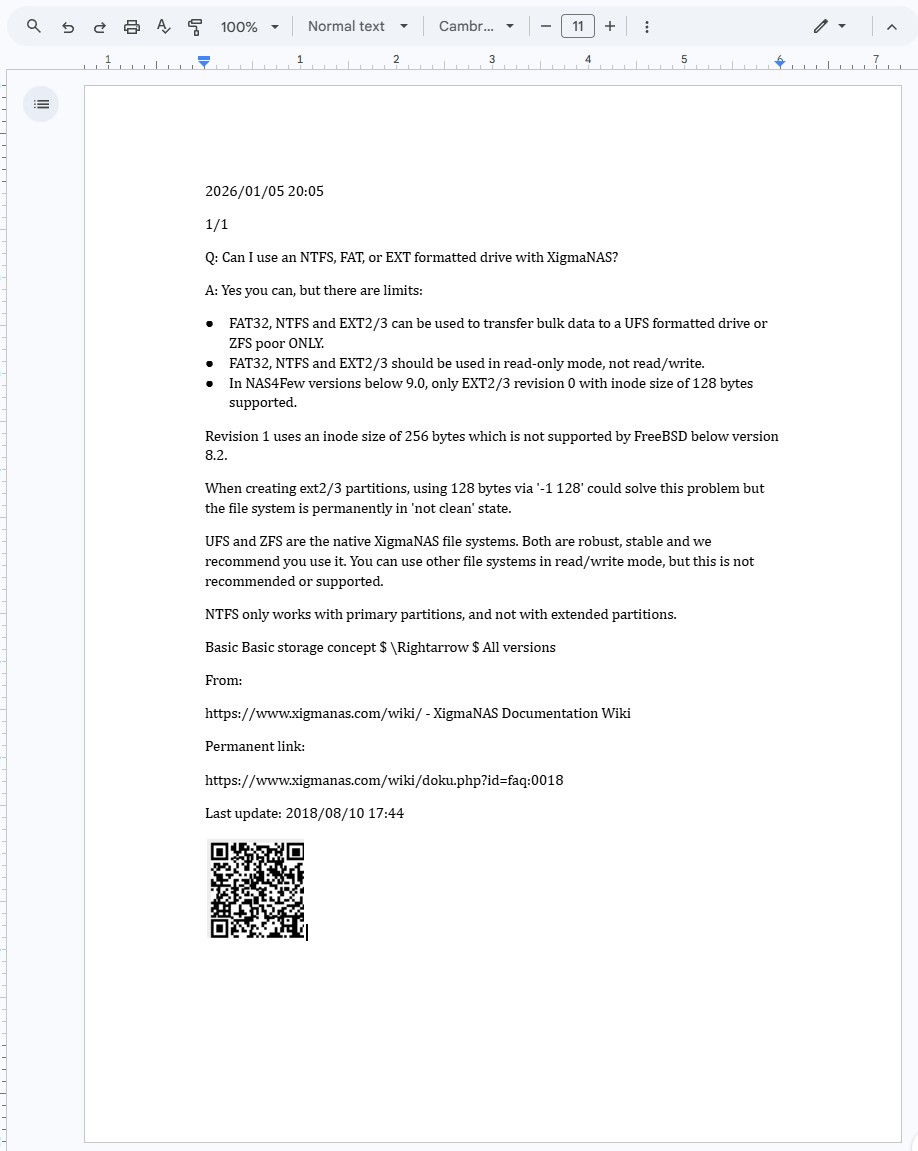
DOCX file after importing to Google Docs.
6. CSV (.csv)
Tabular data extraction. CSV output is purpose-built for documents with tables and structured data — invoices, financial reports, data sheets, spreadsheets trapped inside PDFs. ProPDF extracts rows and columns into clean, comma-separated values ready for any spreadsheet tool.
As ProPDF detects table structures, they are extracted into their own table artifacts. When you download a CSV output structure, those table structures are combined into a single CSV download.
| Attribute | Detail |
|---|---|
| Preserves structure | ✅ Yes — row and column alignment |
| Spreadsheet ready | ✅ Yes — Excel, Google Sheets, Numbers |
| Data analysis | ✅ Yes — load into pandas, R, databases |
| Non-tabular content | ❌ No — works best with tabular documents |
| Automation friendly | ✅ Yes — standard format for data pipelines |
When to use CSV:
- Extracting tables from financial reports, invoices, or data sheets
- Receipt digitization — pulling line items, dates, and amounts into spreadsheets
- Data analysis workflows — load directly into pandas, SQL, or BI tools
- Inventory and pricing lists trapped in PDF format
- Any document where the primary value is in the tabular data, not the prose
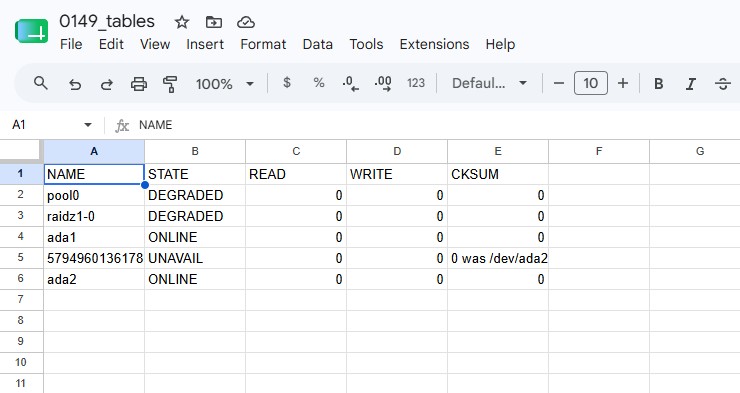
CSV file after importing to Google Sheets. Note the CSV is just the extracted table data.
How to Choose the Right Output Format
Not sure which format to pick? Here's a simple decision framework:
Ask yourself: What happens next with this content?
- "I need to edit this as a document" → DOCX. Open it in Word or Google Docs and make changes.
- "I need to publish this on the web" → HTML. Drop it into your CMS or website.
- "I need structured data for code or AI" → Markdown or JSON. Markdown for readability, JSON when you need machine-parseable structure.
- "I just need the text — no formatting" → Plain text. Simple, small, universal.
- "I need the tables — numbers, rows, columns" → CSV. Open in a spreadsheet or analyze with code.
Still unsure? Start with Markdown. It's the most versatile — readable by humans, parseable by machines, and preserves document structure. You can always re-process the same document into a different format.

Download options of all supported formats.
Download All the Files
There is one last download option: Zip. This will generate ALL of the download formats (Markdown, CSV, DocX, HTML, JSON) and package all the files into a single ZIP archive file. This is handy if you have a mixed format document and to extract text content with Markdown but also have the CSV for any data tables.
One Last Note on Images in Documents
You may have noticed some of the screenshots here include a QR code inside the Markdown document. When the OCR engine detects a region that cannot be reasonably convered, such as QR codes, it will cut those images out and save them as document artifacts.
Since these images can contain important imformation they are included with the Markdown and HTML downloads as embedded base64 images. What this means is you can copy and paste the contents of a MD or HTML file without having to worry about file references. The downside of this approach is those files may be larger in size due to the embedded image data.
Frequently Asked Questions
Which format preserves the most document structure?
Markdown and HTML both preserve structure well. Markdown is cleaner for editing; HTML gives you more styling control. JSON preserves structure in a hierarchical, machine-readable way but isn't designed for direct display.
Can I convert a scanned PDF to DOCX?
Yes. ProPDF's OCR processes the scanned pages first, then converts the recognized text into a properly formatted DOCX file with headings and tables intact.
What if my PDF has tables and prose?
If you need both, use Markdown or DOCX — they preserve the full document including tables and prose. If you only need the tabular data, CSV extracts just the tables.
Does CSV work for non-tabular documents?
Not well. It will work, but you will get a single column multiple row version of your document. CSV is designed for row-and-column data. If your document is primarily text, use Markdown or plain text instead.
Is JSON output suitable for non-developers?
JSON is primarily designed for programmatic use. If you're not working with code, Markdown or DOCX will be more accessible.